Showing posts with label Window. Show all posts

Wednesday, 18 June 2014

Add Own Image/Photo/Picture in Music Mp3 Files

You make a music in PC with the help of Fl Studio ya you make music in android with caustic you need a Music cover for your music.So how can you add it own cover in music file.So here we learn how can you change or add external image in mp3 music album files. After adding Cover photo ,Whenever you play a music file in any player you see your cover image in music file.

The image which is embeded or added with mp3 music file is known as album art or cover image.Whenever you play these type of mp3 file you see a album art cover art photo. 


We can use a simple and short size software to change the music cover photo in mp3 file.His name is mp3 tag which is compatible with windows7 and windows 8.It�s a freeware software and you can download Mp3Tag from their official website.


Adding/Changing an image or picture to mp3 music  files:

Mp3tag is a powerful and yet easy-to-use tool to edit metadata of common audio formats where it supports ID3v1, ID3v2.3, ID3v2.4, iTunes MP4, WMA, Vorbis Comments and APE Tags.
It can rename files based on the tag information, replace characters or words in tags and filenames, import/export tag information, create playlists and more.
Mp3tag supports online database lookups from, e.g., Amazon, discogs, or freedb, allowing you to automatically gather proper tags and cover art for your music library.

Steps to add an image/photo to mp3 music file:

Download Mp3Tag, install and run it.

Select the directory where the mp3 files are located.


After loading all mp3 files of the selected directory, you can choose one or all files to be changed.If the selected mp3 file contains an album art then it will be shown bottom left.


To add an image first click on extended tags and a Tags window will come.


From the Tags window you can change any details from Metadata located on the left.
The cover section, located on the right side, will allow you to add a cover image.


To add or change the cover image, hit the Add cover and browse your desired image file.

Select your image file and press OK.

Wow! You've changed the mp3 Album Art. Play your song in PC or Android mobile, your embedded ya add image will be displayed. 

Monday, 2 June 2014

Superfast Maxthon Web Browser for Android and PC

Maxthon Cloud Browser 

Maxthon Web Browser
Seamless web browsing is no longer just a concept.
Maxthon Browser is a eye catching web-browser. His looks and feel is awesome. 

Comparing other browser he consume less ram and cache. Maxthon is Fast, loaded with many features and more attractive.
Maxthon browsing experiance is greater than others in any platform. Maxthon great feature is cloud syncing ,you can sync all of data,bookmarks,history between your Home PC, Work PC and your Android Mobile.
Maxthon can load webpage fastly than any other browser. Google Chrome, Firefox .Opera Mini and many other top browser are slow comparing him.

Maxthon Cloud WebBrowser For Windows

Maxthon Cloud Browser for Windows uses a unique, innovative dual-core design that uses both Webkit and Trident. Fast and efficient, our dual-core design displays all web pages quickly and reliably. With its first-place HTML 5 support and �out of the box� features you can�t get anywhere else, Maxthon Cloud Browser for Windows frees people to share and send files among different devices and platforms, easily.

Why I Liked Maxthon Browser.

Maxthon Most Important Feature is his super fast speed.Maxthon loads webpages very fast.
Maxthon Support HTML5 and more and more.Maxthon comes with all the basic browser requirements. It has inbuilt extensions that makes your browsing experience much better.


i. Ad Blocker : The Ad Hunter extension of Maxthon not only blocks pop up ads, but when you subscribe to it�s rules, it also blocks the ads on webpages. You can even block specific ads by click. You would find Ad Hunter at the bottom of Maxthon web browser. You can customize Ad Hunter by editing it�s blocking rules.

ii. Screenshot :  You have to install extension or add-on to take a screenshot from any other web browser. This requires to give very sensitive permissions to that extension, plus that extension consumes some extra RAM, but Maxthon have this screenshot ability inbuilt in it. You can snap region or whole page. There are awesome tools to modify the screen image. Helpful for Bloggers, and also to general Internet users.

iii. Translator: Maxthon gives you the option (Go to advanced options) to select your translation tool, that is Google or Youdao. You can translate the selected text or entire page.

iv. Notes : This is also one important feature. I often need to note down interesting and important things on Internet. Sometimes we have to note down things immediately, like  An idea, a thing to remember. Notes is the essential feature in this respect.

Maxthon Web Browser

v. Resource Sniffer Downloads: If you download files regularly, you may like the browser's Resource Sniffer as it may make that process more convenient. A list of files available on the page is displayed in the Resource Sniffer when it is opened. Next to a listing of all files are filters for video, audio and image files, which can be selected and downloaded with just two clicks.
Maxthon Web Browser

vi. Night Mode: If you prefer colors that are less bright to the eye (at night) use Maxthon's Night Mode for that. It basically changes the style of all web pages that you visit to darker tones. And if you do not like the brown-golden design, you can customize it to your liking.
Maxthon Web Browser Night Mode

vii. Dual Engines -Switch Between Webkit and Trident :Maxthon ships with two rendering engines. First Webkit which builds the core of Google Chrome and Safari, and then Trident which is Internet Explorer's rendering engine. Maxthon users can switch between the two, for instance to access pages that IE displays correctly, but the Webkit browser does not. A lightning symbol in the address bar indicates that Webkit is being used.

viii. A password manager, dubbed �Magic Fill�. It doesn�t just remember your passwords like other browsers do, it allows you to save and manage �identities� much the same as password managers like LastPass.

ix. Split Screen:The split screen mode as the name suggest allows Maxthon to display two webpages in a single tab and this can be very useful when transferring date from online forms or else. To access the split-screen mode simply press the F10 key ( pressing it again will disable this feature)
Maxthon Web Browser Split Screen


x. Video pop out or saveThe browser provides the option for you to pop out or save any video for viewing later. This includes YouTube video.

xi. Reader Mode: Once you switched to this mode a simple reader appears on the screen showing the content of the page. Now with this mode you can read webpage contents clearly without ads or unusual scipt. At first start you get some information popups to quickly get to know what you can find under Settings and Auto-switch.
Maxthon Web Browser  Reader mode

xii.  Other : Mute Control, Themes, Data Information Mouse Gestures: 
Here are some additional feature of Maxthon Web Browser. You can turn off the volume from the bottom bar of Maxthon browser. This browser has some pre-installed themes, so you can change and select the theme of your choice. The bottom bar of Maxthon provides the information of data transfer rate, that is download and upload speed. Maxthon also provides the information of CPU usage, available physical and virtual memory, local IP and public IP address.Support Mouse Gesture,set mouse gesture and trigger your command
Maxthon Browser has inbuilt feature that website do not track your location.
Download fastest web browser for android.Maxthon Free Web Browser for Window PC


Maxthon Cloud Browser for Android


Maxthon Cloud Browser for Android is the first multi-tab browser with Maxthon�s innovative Cloud Services, including: Cloud Tabs, Cloud Push, Cloud Download and bookmarks/favorites syncing. With its cool design and out of the box features like Super Gestures, Reader Mode, App Center and more, this browser delivers a fresh and original browsing experience.
Maxthon Web Browser ANDROID

 Features and benefits: 

(NEW) Quick Access - Puts your favorite sites on speed dial.
(NEW) NewsBites - Puts your favorite media on speed dial.
Advanced Gesture feature allows you to create your own touch screen commands to surf with your fingertips.
�My Cloud Tabs� - Lets you pick up where you left off, by automatically syncing your tabs to different devices for a seamless browsing experience.
Cloud Push - Supports sending texts, images, websites/links and tabs to any device with a Maxthon account.
Cloud Download - Supports downloading and uploading files of all types to your free, secure cloud space.
Sharing - Super-easy and intuitive ways to share mobile contents through Facebook, Twitter, Email, SMS and other social media channels.
Favorites syncing - Your bookmarks/favorites travel with you anywhere you go.
Private browsing - Browse the web without saving any browser history.
Reader Mode - Makes it easy to view articles by adjusting font sizes, formatting and removing ads.
Tab browsing - Powerful tab management that puts your mobile screen to maximum use.
Add-ons - Small but useful add-ons to take your browsing experience to new heights
Powerful personalization - Avatars and more in your browser.
Text re-flow/auto-wrap - Texts automatically re-flow in browser, adjusting to your device screen.
Flash video support
Add-ons to make your web browser more fun and productive:
- Advanced Gesture
- Screenshot Assistant
- Bookmark Backup
Maxthon web browser is one of the highest rated browsers for Android today. Rated higher than some of the other browsers on the market, such as Google Chrome, Mozilla Firefox, Opera, Opera Mini, IE (Internet Explorer), Dolphin, UC Web & Boat. Download Maxthon today and you'll be convinced it is the best web browser you've ever used. 


Superfast Maxthon Web Browser for Android and PCReviewed by Vinay Kumar
Rating:5

Tuesday, 20 May 2014

Learn basics of Foreign lanuages in Android with Duolingo

duolingoYou want learn foreign language but you confuse how to learn.So your problem is solved by this app.

Learning a new language takes a lot of time and practice, and usually a lot of money, too. But one service, Duolingo , has proved that great language-learning material doesn't have to cost a dime. The Duolingo website has been one of my favorite places to brush up on foreign words and phrases, and the iPhone app, which has offline content so you can keep learning no matter where you go, is equally stellar. Welcome to the circle, Android users: the small company behind this great language program has finally launched a Duolingo app for your mobile devices, too.


About Duolingo


Duolingo started its private beta on November 30, 2011 and accumulated a waiting list of more than 300,000 users.Duolingo launched for the general public on 19 June 2012 and as of January 2014 has 25 million users, out of which about 12.5 million are active.In 2013, Apple chose Duolingo as its iPhone App of the Year, the first time this honor was awarded to an educational application.

Learn basics of Foreign lanuages ( Latin American Spanish, French, German, Brazilian Portuguese and Italian courses for English speakers, as well as American English for Spanish, French, German, Portuguese, Italian, Dutch, Russian, Polish, Turkish, Hungarian, Romanian, Japanese, Hindi) in Android with Duolingo

Duolingo is a free language-learning and crowdsourced text translation platform. The service is designed so that, as users progress through the lessons, they simultaneously help to translate websites and other documents. As of December 2013,  It is available on the Web, iOS and Android platforms.


You also learn all of these stuff on Duolingo Website.

Duolingo offers extensive written lessons and dictation, but it features less speaking practice. It has a gamified skill tree that users can progress through and a vocabulary section where learned words can be practiced.


Description

Learn Spanish, French, German, Portuguese, Italian, and English. Totally fun and 100% free.
Google Play's "Best of the Best" 2013.
Duolingo is changing the way people learn languages.
� It's free, for real. No fees, no ads, no gimmicks. A college-quality education without the price tag.
� It's fun. Lose hearts for answering incorrectly, advance by completing bite-sized lessons, and track your progress with shiny achievements.
� It's constantly improving. We bust out the lab coats regularly and measure how well you learn on Duolingo. Your learning experience only gets better over time.


If you want to learn Spanish, French, German, Portuguese, Italian, or English, the fast, fun, and free way, there's no better choice than Duolingo.


Learn basics of Foreign lanuages in Android with Duolingo
Reviewed by Vinay Kumar
Rating:5

Sunday, 18 May 2014

How can you help me Increasing My Blog Traffic and Subscibe me on Facebook

Day by day blog traffic increases ,new post coming many new user visit our blog . But we want more traffic .
Many people on chat asked me they wanna help me to increasing  traffic of my blog but how .So i have a solution for you.And my request for every new user come visit this blog and if he liked my work follow my blog on Networked Blogs.If you done this Job I Mention Your Name and Your FB ID on my Blog.

Networked Blogs

Networked Blogs is a blogging network site . With the help of this website you can post my blog feeds to your FB  timeline ,groups,Pages and stay updated with latest feeds and posts.This is one time installation and then all my post automatic post on your Facebook Timeline.Post is look like this.

You do it for me.You do it for fb friends and now they know these android blog.

Step by Step Setup Networked Blogs


If you Scroll down ,In last of my blog you find this Widget Click on Folow This Blog button.

 This apps wants some fb permissions so click on ok.

Now you are on this page Click on Continue.


Click on Blogger Dashboard.
 Give Grant Permissions for this app.
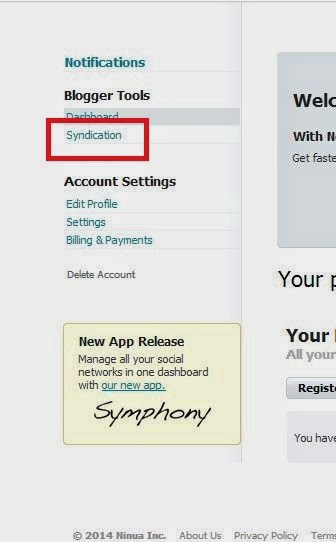
 Now you are on this page click on syndiaction

Click on Blog You Folow
 Clic on Prophet Hacker 
 Click on Syndiaction
 Now add facebook target.
 Now popup open click on all add Buttons


Now you successfully subscribed my blog on Facebook .You Helping Me increasing my blog traffic.
If you done this job I mention your Name and Facebook id on My blog.
Thanks for Contributing Me

Saturday, 17 May 2014

Block\Disable all Youtube ads in PC and Android

Block\Disable all Youtube ads in PC and Android with a simple browser Hack Script
Block Youtube Ads
When we open youtube or speed is very slow and holy shit ads are eating our bandwidth so what we doing .We need some technique to block ads in Youtube .
While there are several ways to block YouTube ads here�s why you shouldn�t use them and instead use this simple browser command which blocks all YouTube ads just like other add-ons or extensions! This simple command can block the video ads which play inside videos as well and you don�t have to use an additional plugin or extension or add-on! No installations whatsoever!

You just need to copy-paste a simple command in your browser�s developer console and you are good to go. You�ll never see an advertisement again while browsing your favorite YouTube videos.
There are a lot of ways to block ads, but with a simple command in the developer console, you can disable all ads on YouTube via an experiment.

Block Ads In all Android Games, Apps and Browsers

P
 A less advertised experiment can disable all ads on the site. Here's how to turn it on:P
  • Open up a YouTube video (any will do).
  • Open up the developer console (Ctrl-Shift-J for Chrome, Ctrl-Shift-K for Firefox)
  • Enter the following code:
document.cookie="VISITOR_INFO1_LIVE=oKckVSqvaGw; path=/; domain=.youtube.com";window.location.reload();P
And the ads are gone. Well since this a temporary workaround and not a permanent solution we really can�t predict when it�ll stop working. But for now since it�s working let�s use it and forget what�s to come in future! Enjoy an ad-free experience without any plugins!

Block Youtube ads on Android

NOTE : You�re Device needs to be ROOTED! This will work on Any Android Phone or Tablet running Android 4.0 or above. WITHOUT ROOT ACCESS THIS WILL NOT WORK!!!

How To Root In Android

INSTRUCTIONS :
1. On your Rooted Android Device, Install �Xposed Installer�. Open the App and install Xposed framework, Reboot the device.

Easy Android ROMs Customization Through Xposed Framework

2. Download �YouTube AdAway� and install, open Xposed Framework App , Go into �Modules� section and Enable � YouTube AdAway�.
3. Open �YouTube AdAway� App and Tick �Hide ads�.
Tip : You can also hide brands logo and video suggestions popups and you can disable country restrictions.
Congratulations! You have successfully disabled Ads in the official YouTube App for Android.

Related Articles

Best 40 Facebook 2014 Hacks ,Tips & Tricks that Make Your Facebook Life Better

Friday, 16 May 2014

Extract\Decrypt Whatsapp Backup Messages

Whatsapp is now very popular messanger in any smartphone.So hackers wanna hack this and read users messages so how how can he do it.I will show you everything in very detail.Hacking Whatsapp Messages is not easy because Whatsapp encryt all data in .crypt5 format. It stores messages in encrypted database in internal storage. To decrypt WhatsApp database, there is  a tiny tool called WhatsApp Xtract. It lets you to view WhatsApp messages on PC.
By following this tutorial, you will get only conversation. You will not get any multimedia records. Multimedia records are stored in SD card underWhatsApp folder.
Where WhatsApp database  is stored?
If you have installed WhatsApp on Phone memory, then you can find the WhatsApp database at /sdcard/whatsapp/Databases The database files may have names like msgstore.db.crypt, msgstore.db, wa.dbThese database files are updated on every conversation you make in WhatsApp. The name of the contact and phone number may also be displayed in case of last two files.

How to Use Whatsapp without Mobile Number or Sim


Update: Whatsapp in its recent update stores database in crpyt5 format, so for decrypting database you need to convert crypt5 to crypt file.
So first you have to convert crypt5 file to crypt using Whatsapp Crypt-DB Converter or alternatively you could also use WhatCrypt

Procedure to decrypt WhatsApp database

Android

  • First Make Backup of Whatsapp Conversations.

    How setup backup and restore conversations on WhatsApp

  • Open WhatCrypt App and Click on Decrypt  Whatsapp Database.
  • Transfer the WhatsApp  database  /sdcard/whatsapp/Databases  msg.db files from your mobile to PC using USB.
  • Now download WhatsApp Xtract tool.
  • Extract the content in WhatsApp_Xtract to a New Folder.
  • Now you need to download Python 32bit or 64bit version depending on your system architecture and install it for the process of decryption of.crypt file.
  • Make sure you install Python under C:Program Files\Python
  • Then run pyCrypto.bat as admin. pycrypto download 5mb file via a net.

  • Now drag one of the databases at /sdcard/WhatsApp/Databases toWhatsApp_xtract_drag�n�drop_database(s)_here file in Xtractor folder.
  • After the process is finished, your default browser will open up the conversations you made.
Note : Sometimes in the end import Error would occur. In those cases just uninstall and install Python in C: instead of C:Program FilesPython
If you got any problem, just let me know. For better understanding, watch the video tutorial below.

Download This Video

Related Articles

Extract\Decrypt Whatsapp Backup Messages
Reviewed by Vinay Kumar
Rating:5

Tuesday, 13 May 2014

Run Whatspp in Window Computer (PC)


WhatsApp is the most widely used smartphone messenger app available today. Like a Facebook we are badly addicted to Whatssapp.Whatsapp on Android is possible but what the hack we done that run our Whatsapp in PC.Solution is Bluestack Software.
With the help of Bluestacks we run whatsapp in PC.


Run Android apps in Pc with Bluestacks Offline Installer

Portability of WhatsApp is great since it lets you communicate to anyone using WhatsApp without worrying about the operating system installed on their phone. But what�s great is that now you can download WhatsApp on your computer (PC and Mac) and use it to share stuff with other WhatsApp users just like you do on your phone.

How setup backup and restore conversations on WhatsApp

How To Install WhatsApp on Your Window Computer (PC)

We will use a simple trick to download WhatsApp on computer. We will download WhatsApp android app and then we will run it using the trick to run an Android app on computer. 
� Before you download WhatsApp on your computer, download BlueStacks from here.
� Now install BlueStacks on your computer. To do this, simply double click on the exe file you downloaded and follow the on-screen instructions.
� After installing BlueStacks, start it and click on the blue search icon on it. Enter WhatsApp in the search box to find the WhatsApp app to download.
search whatsapp app to download

How to Broadcast (bcc) a WhatsApp message and what it means


� You will get a list of Android App marketplaces in the search results. You can download WhatsApp on your computer from each of these places, but select the official Google Play store to be on the safe side.
� Now click on the �Install� button to download WhatsApp on your computer. BlueStacks will automatically download and install WhatsApp on your computer now.
That�s it. Now you are ready to use WhatsApp on your computer.

How To Use WhatsApp on Your Computer (PC and Mac)

To start using WhatsApp on your computer, click on the �My Apps� button on the BlueStacks window. Again the procedure is exactly same for using WhatsApp on PC and on Mac. In �My Apps� app list click on WhatsApp to launch it.

Whatsapp on Computer Pc Window

If you are launching WhatsApp on your computer for the first time, you will need to login (or create an account) on WhatsApp. Once its done, you can start using WhatsApp on your computer just like you would do on your phone.
Useful Tip
To add contacts to WhatsApp on computer, click on the bottom bar of the Bluestacks app window. As you click on it, all the WhatsApp options will appear including the Add contacts button.

Related Articles

Block Ads In all Android Games, Apps and Browsers

Search